

Identity Logs
Identity Logs is an audit log of Single Sign-On (SSO) and SCIM activity in your organization. It shows who signed in through your identity provider (IdP), which users, roles, and licenses your IdP changed, and what went wrong when a sign-in or provisioning request failed.
Accessing Identity Logs
Section titled “Accessing Identity Logs”Identity Logs are available to workspace admins in organizations with SSO or SCIM enabled.
In the LocalStack Web Application, open Settings and select Identity Logs.
Reading the log
Section titled “Reading the log”Each row in the table is one event, newest first:
- Time: When the event happened.
- Message: What happened, for example
User jane@acme.com signed in via SSO. - Scope:
ssofor sign-ins and IdP configuration changes,scimfor provisioning requests sent by your IdP. - Status:
SuccessorFailed. - User: The email of the affected user, if the event concerns a single user.
The log shows 50 events per page. Use the arrows below the table to move between pages. New events do not appear on their own, so click Refresh to load the latest ones.
Viewing event details
Section titled “Viewing event details”Rows with an info icon have more details. Click the row to open the details panel, which shows the full message, the date, the user email, the name of the IdP involved, and an Extras section.
Extras holds the technical details of the event. The fields depend on the event, and the most common ones are:
| Field | Meaning |
|---|---|
action |
The operation, such as sign_in, create_user, or replace_group_members. |
method |
The HTTP method of the SCIM request sent by your IdP (POST, PUT, PATCH, DELETE). |
subscription_id |
The subscription behind a license group. |
added, removed, seats |
For license groups: how many users gained or lost a license, and how many seats the subscription has. |
error_code |
For blocked SSO sign-ins: the policy that blocked the sign-in. |
route, status_code, error_type |
For failed SCIM requests: the endpoint called, the HTTP status returned to your IdP, and the type of error. |
request_id |
For failed SCIM requests: a unique ID for the request. |
What gets logged
Section titled “What gets logged”Identity Logs records activity that comes from your IdP, plus changes to the IdP configuration itself. Actions taken directly in the Web Application, such as inviting a user or assigning a license on the Users & Licenses page, and sign-ins with a password, are not logged.
- Sign-ins: Every sign-in through your organization’s SSO provider, successful or not. A successful entry states whether the user signed in or whether a new LocalStack account was created for them. A blocked sign-in states the reason, for example Strict SSO Mode, an email domain restricted to a specific IdP, account takeover protection, or an email that already belongs to another account.
- IdP configuration: Creating, updating, or deleting an identity provider in Settings → Single Sign-on. If the configuration fails, for example because of invalid SAML metadata, the message includes the error returned during setup.
SCIM user management
Section titled “SCIM user management”- Users created, updated, or deactivated by your IdP.
- Existing members of your organization whom SCIM takes over managing.
- Repeated create requests for a user who is already provisioned, shown as confirmations.
SCIM role management
Section titled “SCIM role management”- Role groups (admin and member) created, updated, replaced, or deleted by your IdP.
Role group entries show that a group changed, but not which users gained or lost a role. Check the Users & Licenses page to see the resulting roles.
SCIM license management
Section titled “SCIM license management”- License groups created, updated, replaced, or deleted by your IdP, with how many users gained or lost a license.
- Requests rejected because the subscription does not have enough seats.
Failed SCIM requests
Section titled “Failed SCIM requests”Any SCIM request that LocalStack rejects is logged as a failed event. The message is the same error that your IdP receives, so you see the explanation in both places. Requests with a missing or invalid SCIM token are not logged, because LocalStack cannot tell which organization sent them.
Examples
Section titled “Examples”The following examples show common events and what they mean.
SSO: Successful sign-in
Section titled “SSO: Successful sign-in”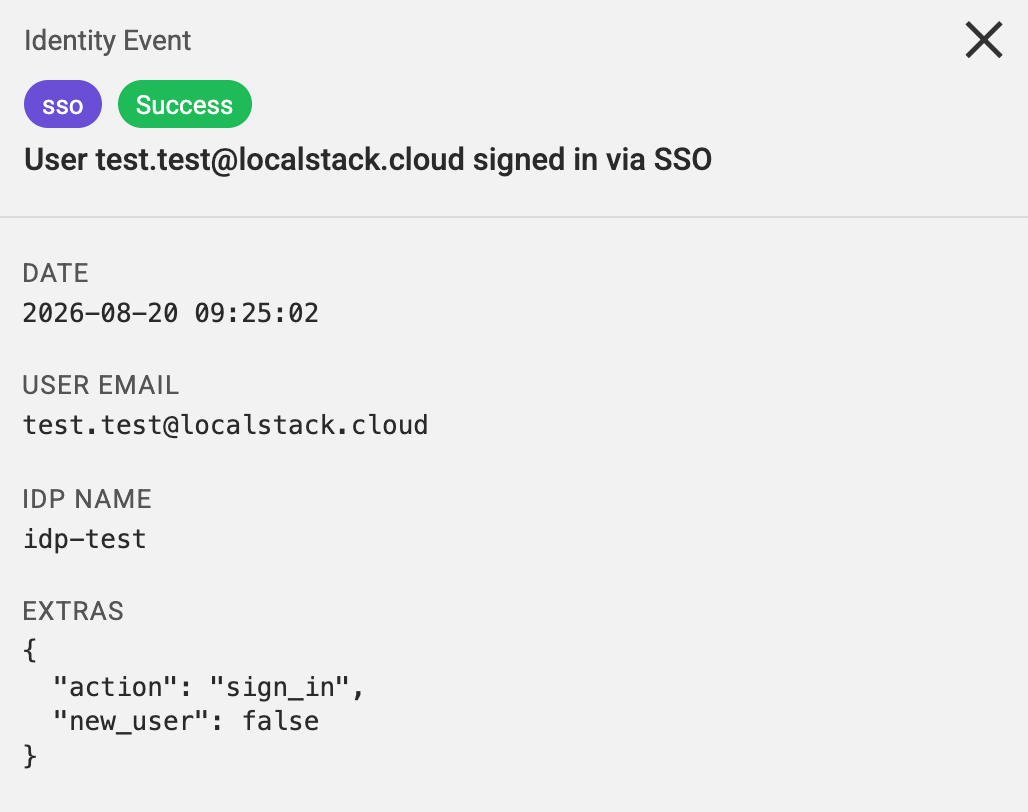
A user signed in through your SSO provider.
In Extras, new_user is false because the user already had a LocalStack account.
For a first sign-in that creates the account, new_user is true and the message reads New user ... provisioned via SSO.
SSO: Sign-in blocked by account takeover protection
Section titled “SSO: Sign-in blocked by account takeover protection”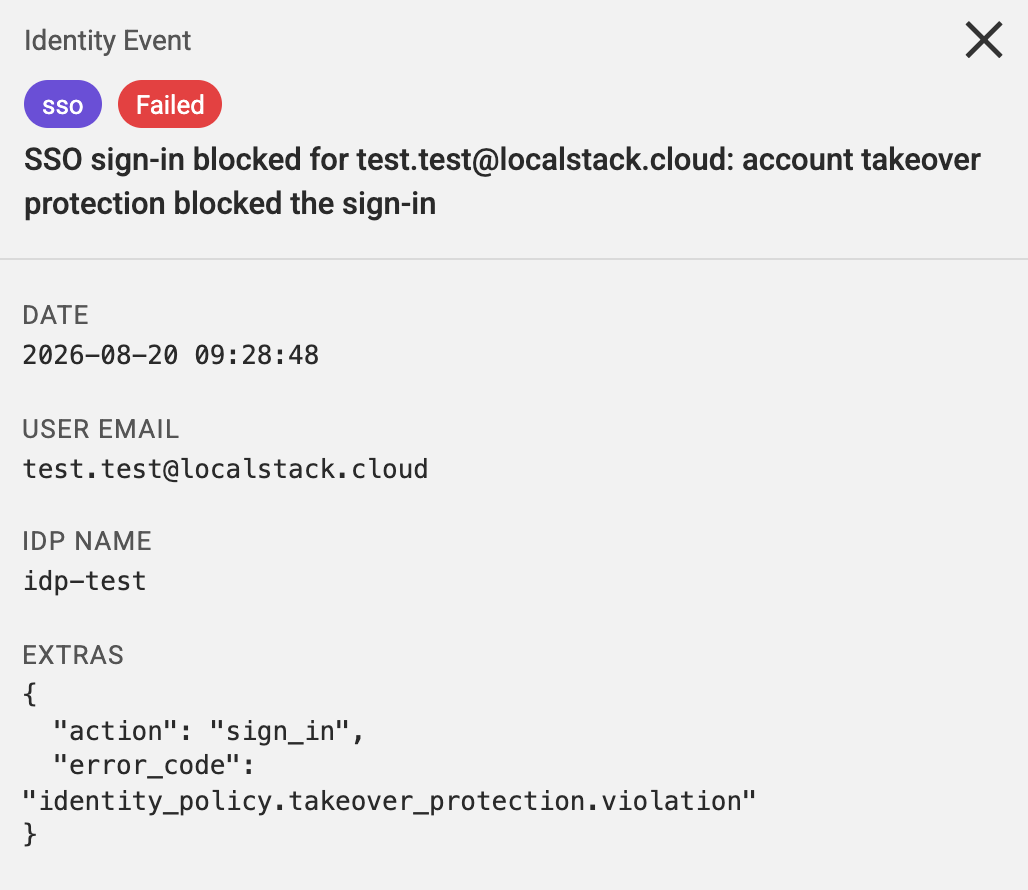
A user with an existing LocalStack account tried to sign in through your SSO provider, for example with the Sign Up Portal link, before being invited to your organization. LocalStack blocks the sign-in so that an IdP cannot take over an account it does not manage.
To fix it, invite the user from the Users & Licenses page, then ask them to accept the invitation and sign in through SSO again.
SSO: Identity provider configuration failed
Section titled “SSO: Identity provider configuration failed”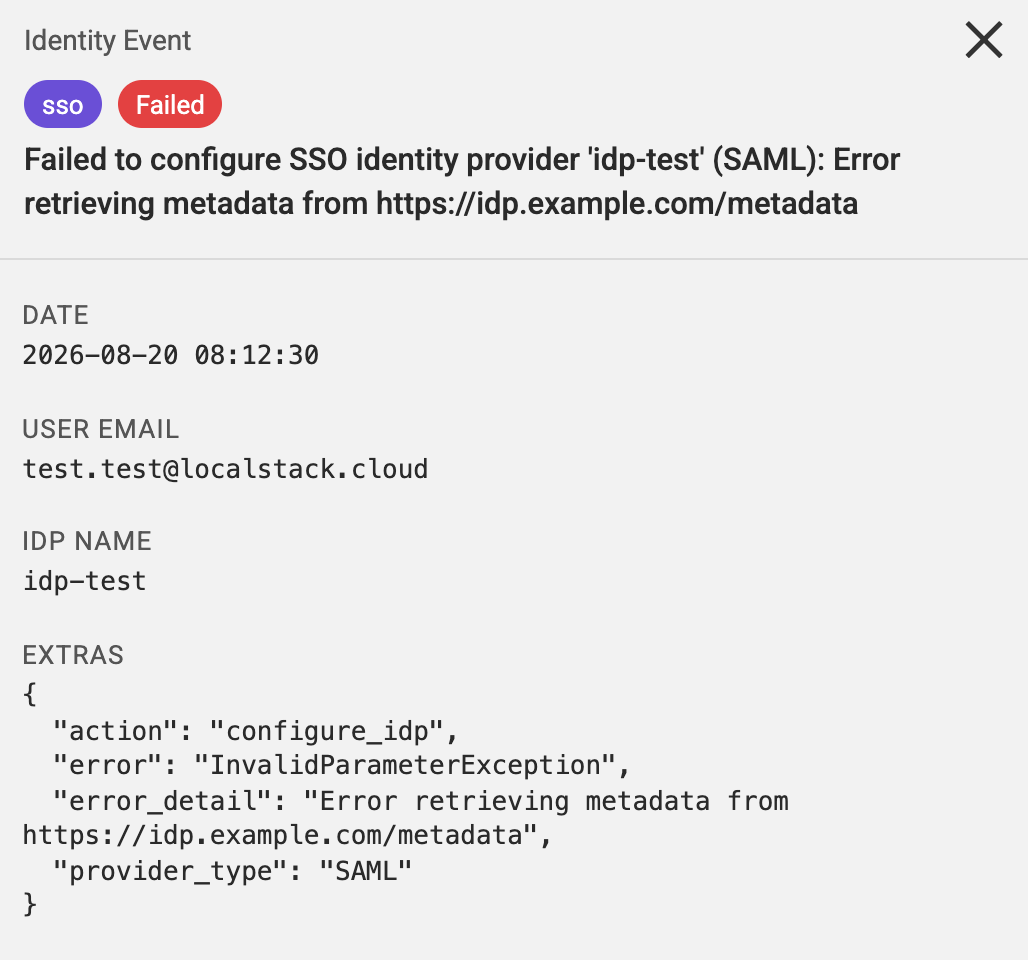
An admin tried to save an identity provider in Settings → Single Sign-on, and the configuration was rejected. Here, LocalStack could not load the SAML metadata from the URL entered. For IdP configuration events, User Email shows the admin who made the change.
To fix it, check that the metadata URL is correct and reachable, or upload the metadata file instead, then save the identity provider again.
SCIM: User provisioned
Section titled “SCIM: User provisioned”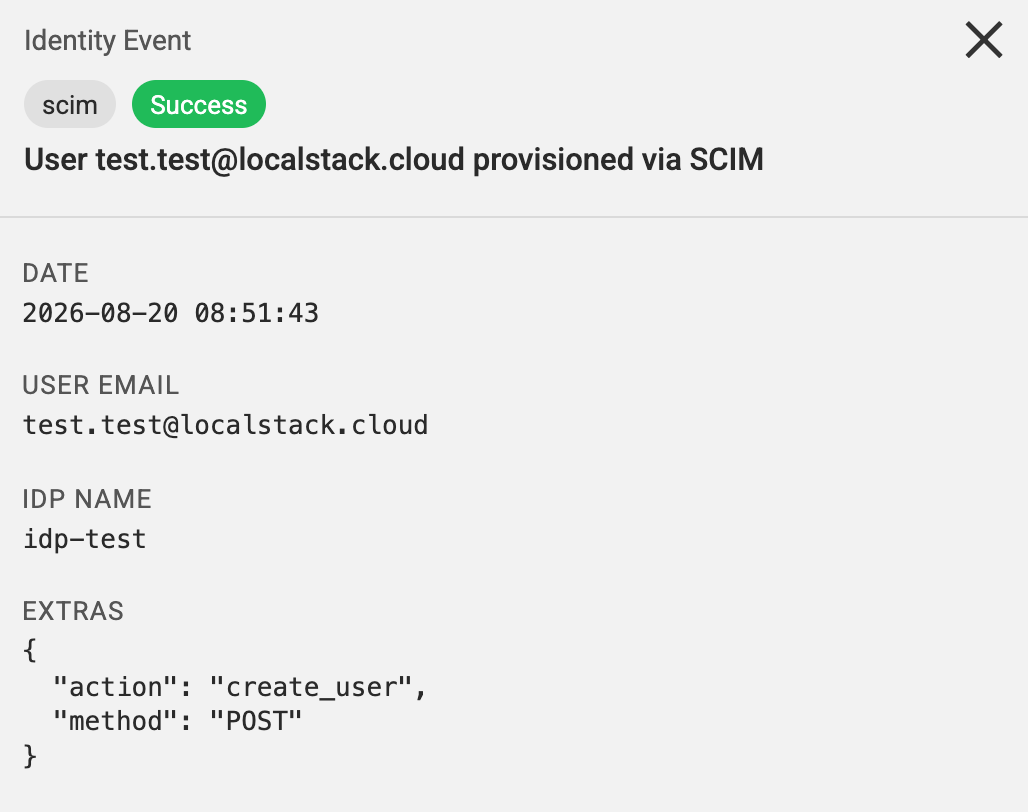
Your IdP created a new user in your organization.
SCIM: Role group updated
Section titled “SCIM: Role group updated”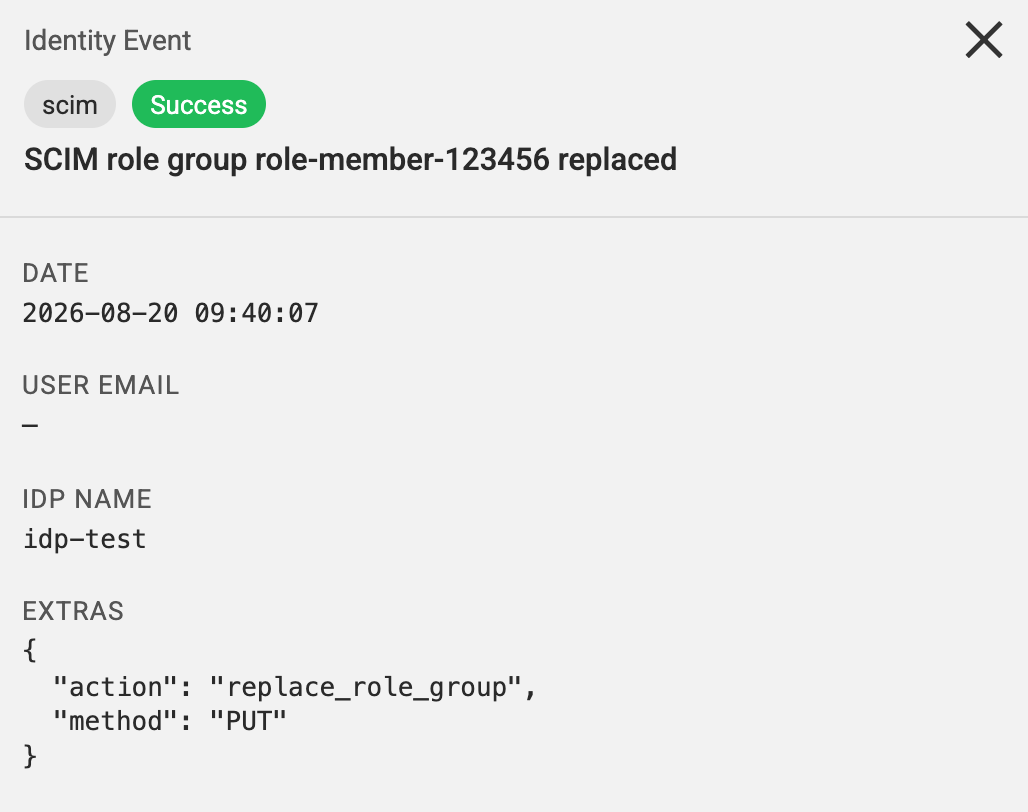
Your IdP pushed a member or admin role group, and LocalStack applied the matching workspace role to the users in it. See Role Management for Okta or Microsoft Entra ID.
SCIM: License group updated
Section titled “SCIM: License group updated”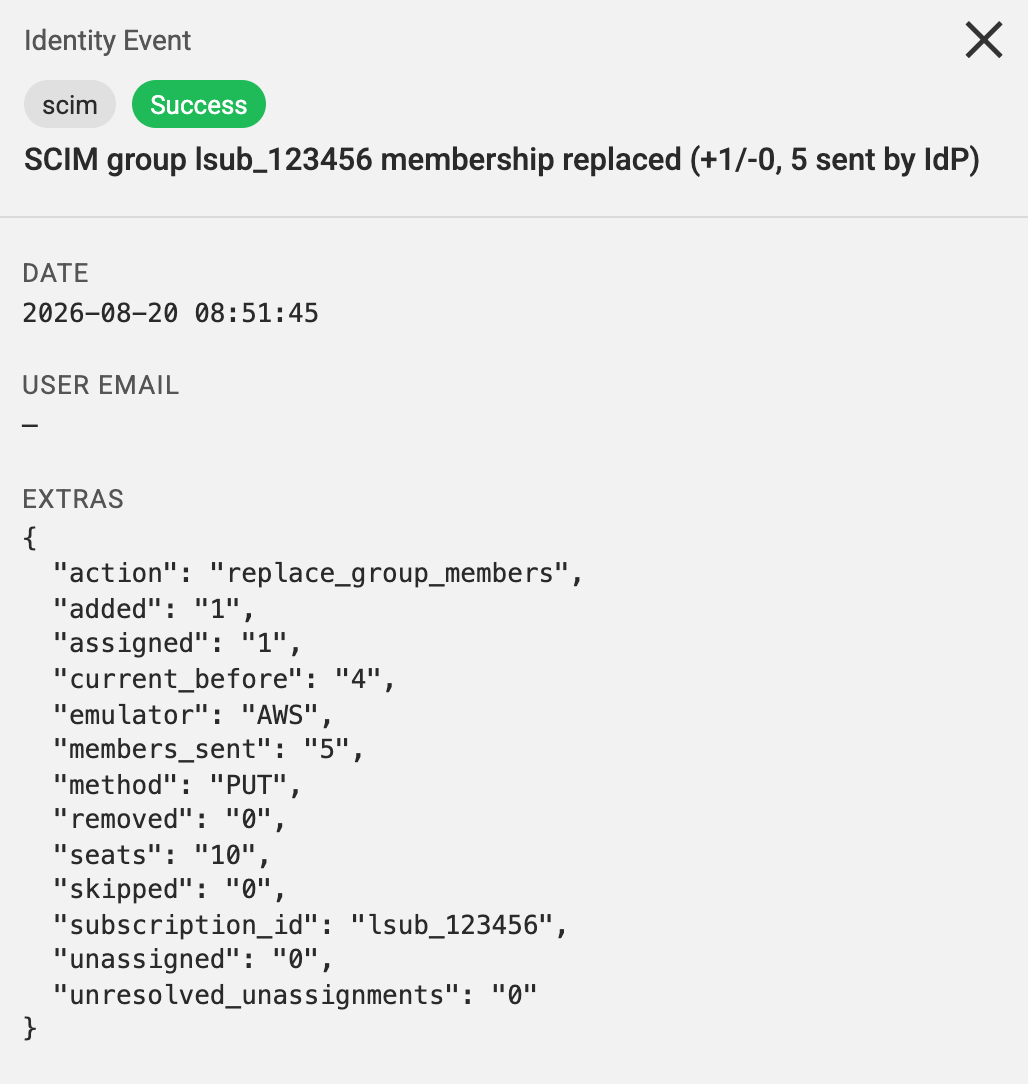
Your IdP pushed the members of a license group, and LocalStack assigned a license for subscription lsub_123456 to one more user.
The added and removed fields in Extras show how many users gained or lost a license.
SCIM: User already exists
Section titled “SCIM: User already exists”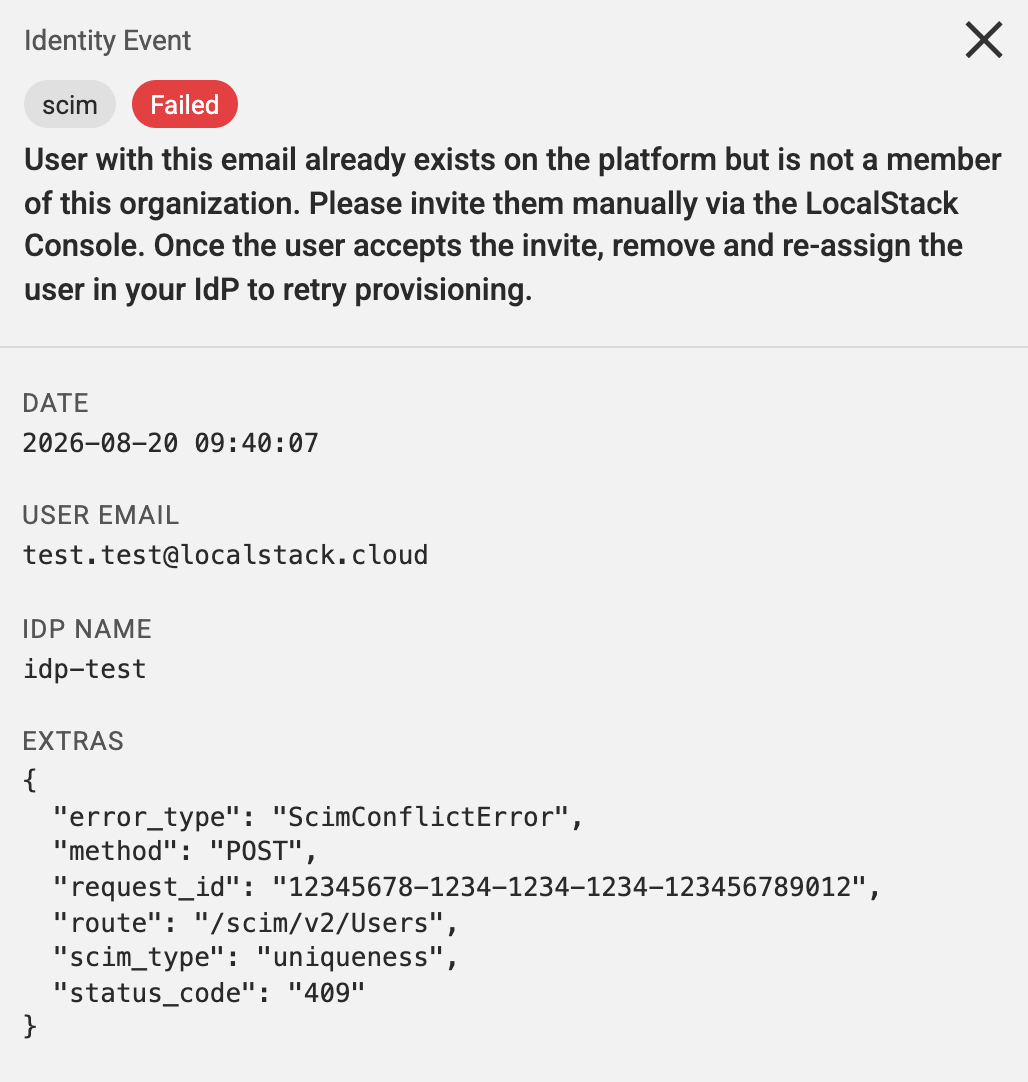
Your IdP tried to provision a user who already has a LocalStack account but is not a member of your organization. The User Email field shows which user was affected. For security reasons, SCIM cannot add existing accounts to your organization on its own.
To fix it, invite the user from the Users & Licenses page. Once they accept the invitation, remove the user from the application in your IdP and assign them again to retry provisioning.
SCIM: Role group conflict
Section titled “SCIM: Role group conflict”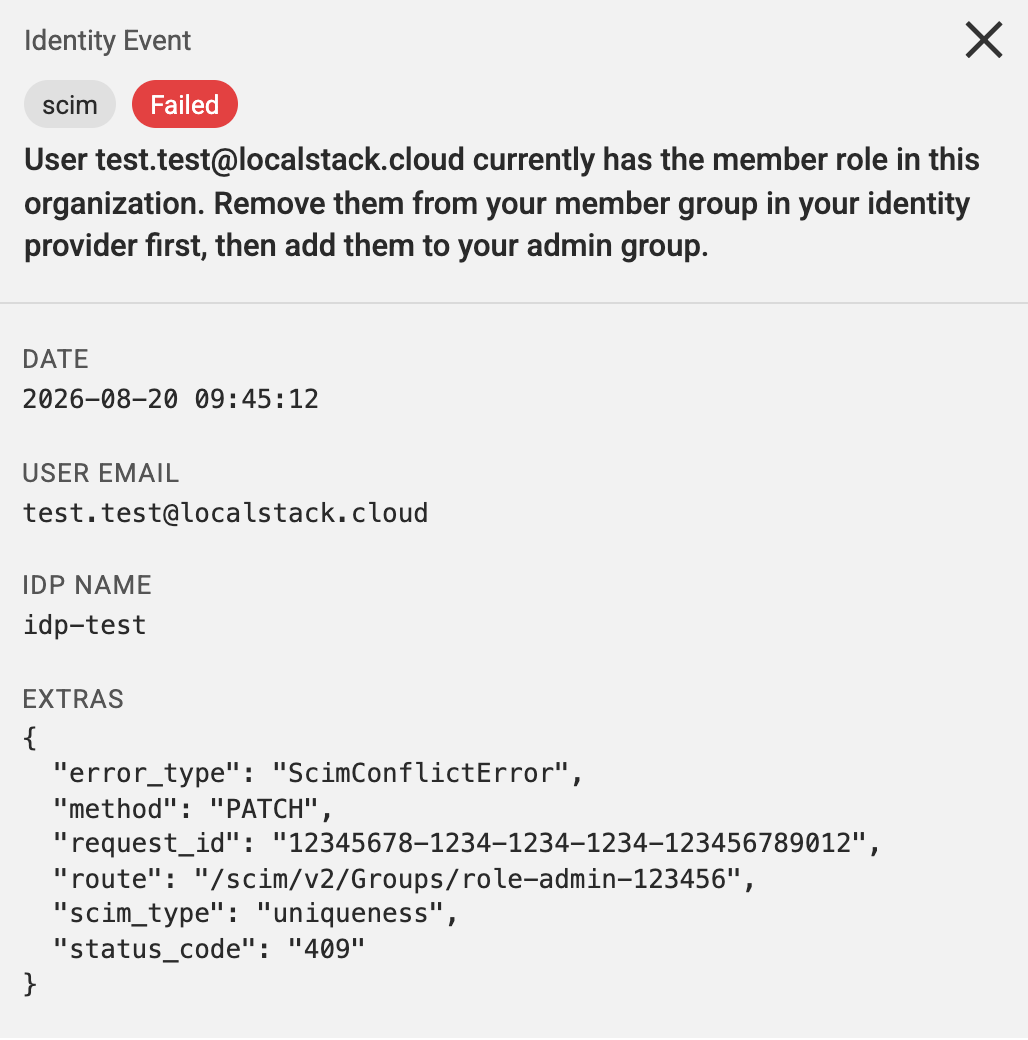
Your IdP tried to add a user to the admin role group while they are still in the member role group. A user can only be in one role group at a time, so LocalStack rejects the change.
To fix it, remove the user from the member group in your IdP and let that change sync, then add them to the admin group. See Moving a User Between Roles for Okta or Microsoft Entra ID.
SCIM: No available licenses
Section titled “SCIM: No available licenses”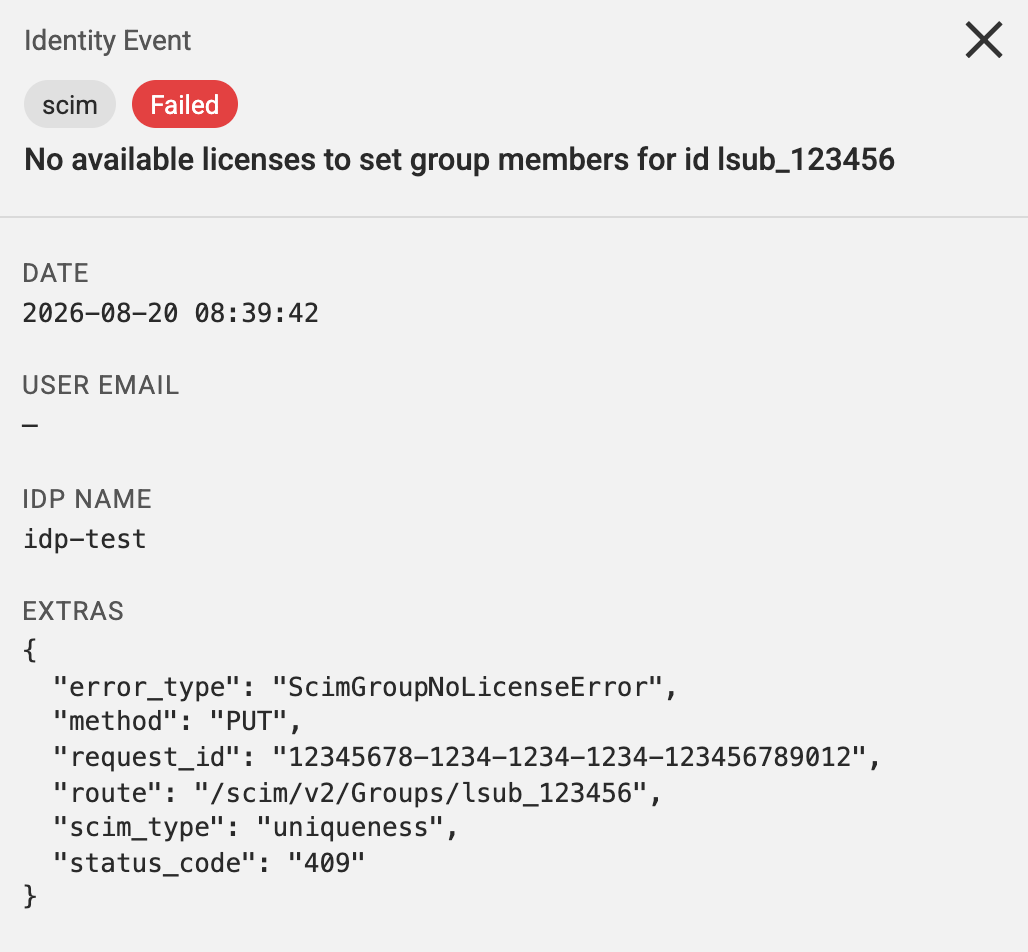
Your IdP tried to assign more licenses than the subscription has seats. For example, a 10-seat subscription with 11 users in its license group in your IdP. LocalStack rejects the request so that the subscription is not over-assigned.
To fix it, remove users from the license group in your IdP, or add seats to the subscription.