

LocalStack Toolkit for VS Code
Introduction
Section titled “Introduction”The LocalStack Toolkit for VS Code enables you to install, configure, and run LocalStack without leaving VS Code.
The extension bundles the lstk CLI, so there is nothing else to install.
Prerequisites
Section titled “Prerequisites”Install and configure LocalStack
Section titled “Install and configure LocalStack”The setup wizard ensures LocalStack is installed and configured for a seamless integration with AWS tools, like the AWS CLI, SDKs, AWS SAM or the AWS CDK.
LocalStack can be installed either locally for the current user or globally for all users.
You can start using LocalStack for free by signing up for a free account or signing into an existing one. The setup wizard facilitates this process and configures your authentication token required to start LocalStack.
The LocalStack Toolkit integrates seamlessly with AWS tools like the AWS CLI. It automatically configures a dedicated localstack AWS profile in your .aws/config and .aws/credentials files, if one is not already present.

Sign in and out
Section titled “Sign in and out”Use the LocalStack: Login and LocalStack: Logout commands from the Command Palette to manage your session without leaving VS Code.
The Instances view in the LocalStack activity bar also shows a Login or Logout button in its title bar, whichever applies to your current session.
Run LocalStack
Section titled “Run LocalStack”The LocalStack button in the VS Code status bar provides an instant view of LocalStack’s runtime status, such as stopped or running.

The status bar button provides access to Start and Stop LocalStack commands. The status button turns red if LocalStack is not found or misconfigured. You can also open the LocalStack log view from here.

You can also start, stop, and refresh instances from the Instances view: use the refresh button in its title bar to update the list, and the Start or Stop action on an instance row to control it directly.
Edit the CLI configuration
Section titled “Edit the CLI configuration”Run LocalStack: Edit Configuration from the Command Palette, or use the button in the Instances view title bar, to open the lstk CLI’s config.toml file directly in the editor.
Viewing LocalStack logs
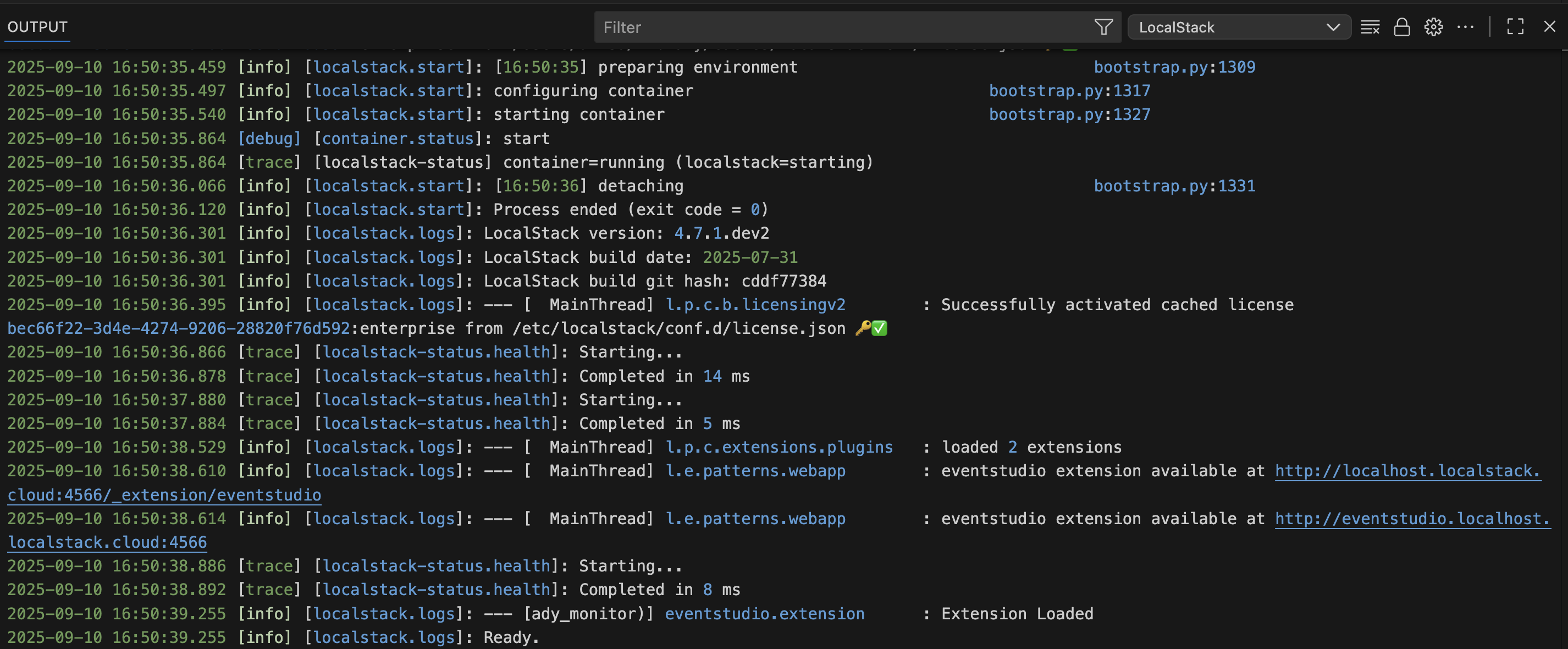
Section titled “Viewing LocalStack logs”You can see LocalStack logs in the VS Code Output panel. Simply select LocalStack from the drop-down menu.
localstack AWS profile
Section titled “localstack AWS profile”Once the profile is configured you can use it from your favorite AWS tools like AWS CLI, SDKs, CDK to deploy to and interact with LocalStack.
For example, to list SQS queues using the AWS CLI and your localstack profile:
aws --profile localstack sqs list-queuesLocalStack Commands Table
Section titled “LocalStack Commands Table”| ID | Title | Menu Contexts |
|---|---|---|
localstack.configureAwsProfiles |
Configure AWS Profile “localstack” | commandPalette |
localstack.login |
Login | commandPalette |
localstack.logout |
Logout | commandPalette |
localstack.openCliConfig |
Edit Configuration | commandPalette |
localstack.refreshInstances |
Refresh Instances | commandPalette |
localstack.setup |
Run Setup Wizard | commandPalette |
localstack.start |
Start LocalStack | commandPalette |
localstack.stop |
Stop LocalStack | commandPalette |
localstack.viewLogs |
View Logs | commandPalette |
Contributing
Section titled “Contributing”Read our contributing guidelines to learn how you can help.
LocalStack Toolkit for VS Code extension support
Section titled “LocalStack Toolkit for VS Code extension support”Please provide feedback or report an issue on the LocalStack Toolkit for VS Code by using our GitHub Discussions board page.
LocalStack general support
Section titled “LocalStack general support”For LocalStack-related questions, feedback, and contributions, you can visit our help & support page to learn about the different support channels and report issues on our GitHub Discussions board.